MooseFS PRO only.
Installation
This procedure installs the Windows Client on one Windows machine. The procedure runs the installer, sets the connection parameters, chooses the user mapping mode, and leaves the client installed as a Windows service. Run the procedure on every Windows machine that will access the cluster. The procedure assumes the state that About Windows Client describes: the installer downloaded and the Master Server configured with the license. The machine itself has to meet the requirements. The installer needs administrator privileges.
After an uninstallation of the client, restart the machine before you install the client on it again. An uninstallation that removes the Dokan library leaves a restart pending. Until that restart, the installer stops with the message Installation failed because a Windows reboot is still pending after a Dokan driver uninstall.
Start the installation by double-clicking the downloaded MooseFS-Pro-Windows-Client-Installer-*.exe file.
The installer asks for the connection parameters
The MooseFS client configuration screen collects the parameters of the connection:
-
MooseFS master host
The host name of the MooseFS Master Server. Required field. -
MooseFS master port
The port of the MooseFS Master Server (default:9421). Required field. -
Mount point (eg.
M:)
The drive letter that the cluster is mounted at (default:M:). Pick a letter that no other hard disk drive or network service is mounted at. Required field. -
Master connection password
The password that the matching entry in themfsexports.cfgfile on the Master Server requires. Select Plain to type the password itself, or MD5 to give its MD5 digest instead. If the entry accepts the client by address alone, leave the field empty. For both forms of the entry, and for the command that produces the digest, see access control. -
Master path (eg.
/)
The MooseFS subdirectory to mount. The default/mounts the root of the whole cluster. The field is the equivalent ofmfsmount -o mfssubfolder=PATH(or-S PATH) on Linux. -
Preferred Labels
The preferred labels of this client: an ordered list of label expressions, most preferred first. The Chunkservers that match those expressions are placed at the front of every list of Chunkservers that the Master Server gives this client, for reads and writes alike. When the field is empty, the client orders the list on its own. A read goes to the server on which the client has the fewest of its own operations running. A write follows the order that the Master Server sent.
The last choice on the screen is the user mapping mode. The mode decides which user ID and group ID are carried by the calls that this machine sends to the cluster. The form opens with Static selected.
Static mapping sends one identity for every user
In static mode every call carries the same user ID and group ID, whatever Windows user is logged in. Static mode is for environments without an Active Directory configuration. Two more fields appear:
-
Static UID
The user ID that every call to the cluster carries. -
Static GID
The group ID that every call to the cluster carries.
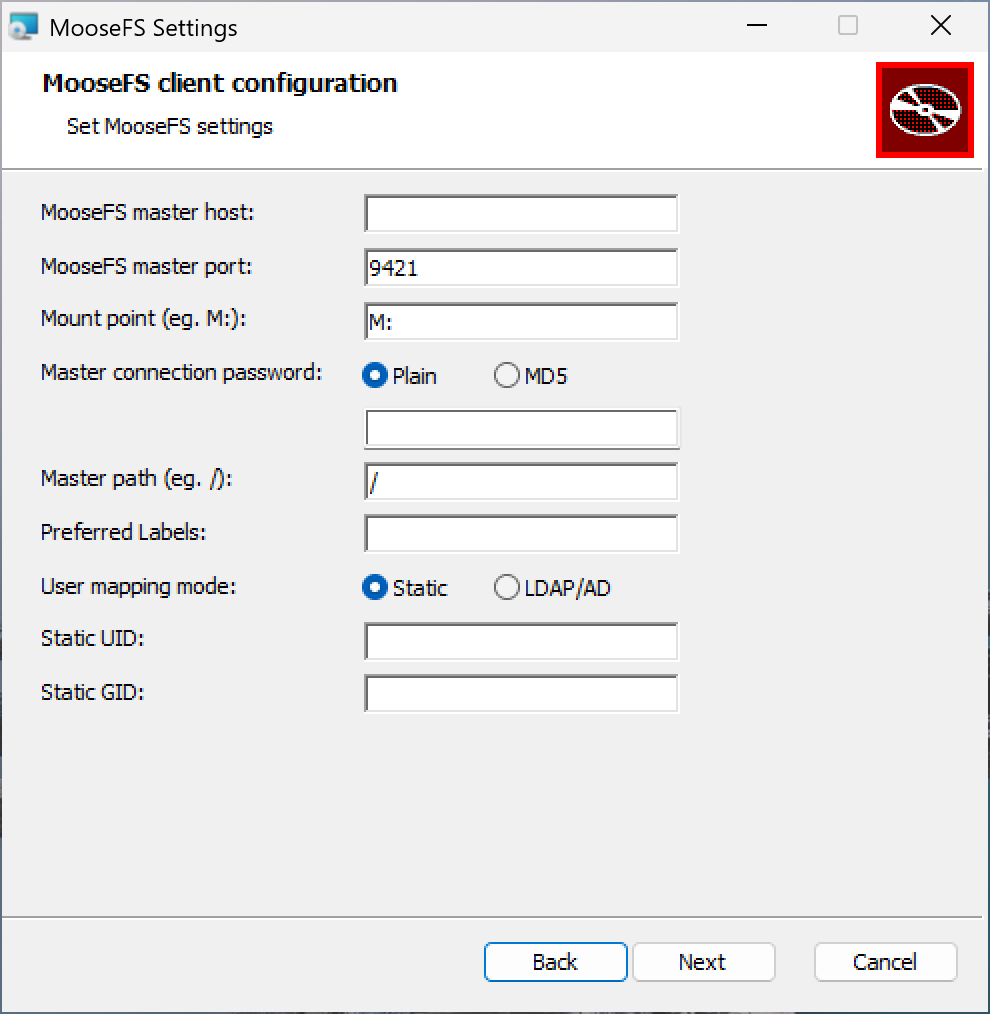
The configuration screen in static user mapping mode.
LDAP/AD mapping reads identities from Active Directory
In LDAP/AD mode, access to the cluster follows the LDAP/AD mapping of Windows users to user IDs and group IDs. Usage describes how the client queries the directory and what happens to users that the client cannot map.
-
LDAP host
LDAP/AD host address. Required field. -
LDAP port
LDAP/AD host port number. Required field. -
LDAP base DN
Distinguished Name base. For example:dc=moosefs,dc=lan. -
LDAP user DN
Name of the Active Directory user with privileges to query AD. -
LDAP user password
Active Directory user password.
On a machine joined to an Active Directory domain, every field except LDAP host and LDAP port can stay blank. The system configuration supplies the remaining LDAP parameters. The credentials of the currently logged-in user are used.
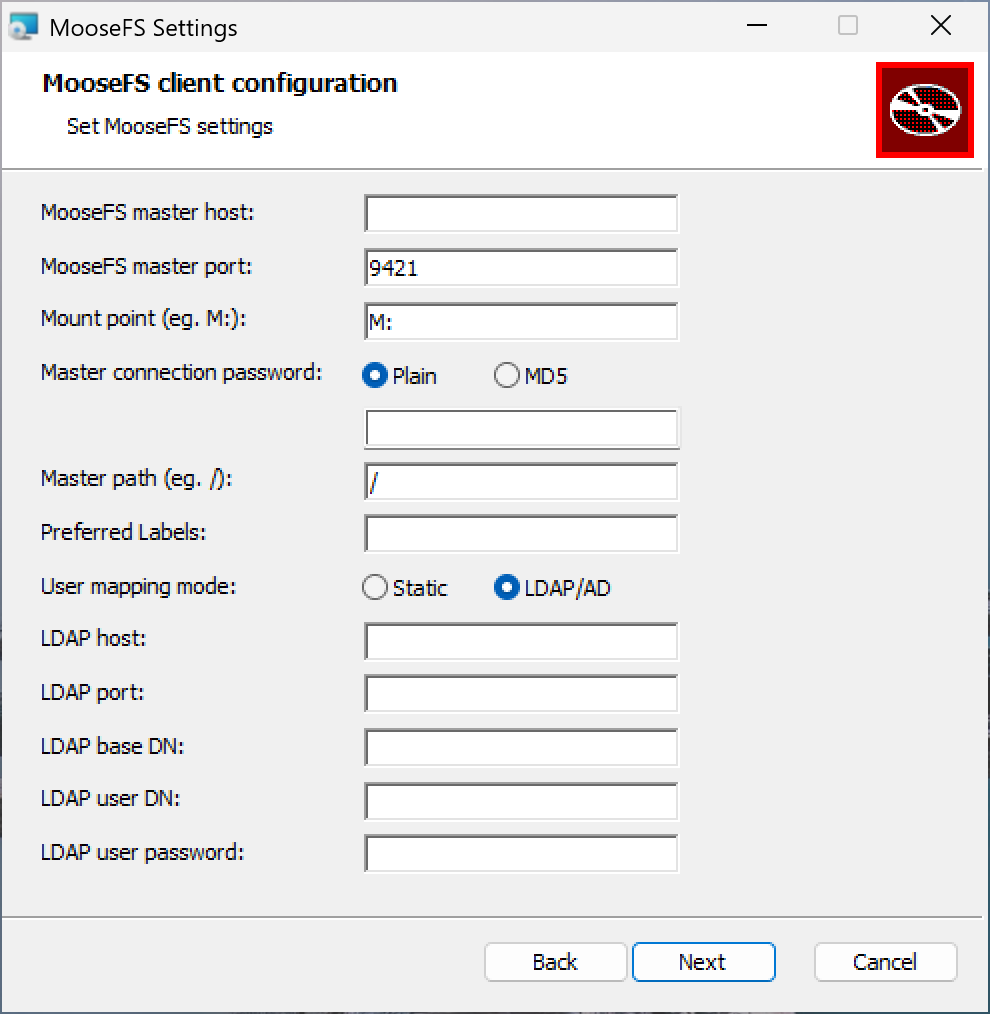
The configuration screen in LDAP/AD user mapping mode.
The installer runs unattended from the command line
By default the installer displays the user interface and all prompts, whether it is started by a double-click or from a command prompt. /install, the default action, starts that same graphical installer:
C:\>MooseFS-Pro-Windows-Client-Installer-*.exe /install
To run the installer in quiet (unattended) mode instead, run MooseFS-Pro-Windows-Client-Installer-*.exe /quiet in a command prompt with administrator privileges.
A quiet installation does not set the Windows registry values, so set them by hand before you install. For the keys, and for the .reg file that sets them in one import, see registry parameters.
All available options of the installer:
/install– the default action of the installer./repair– repairs the installed package./uninstall– removes the installed package./layout– creates a complete local copy of the package in the directory./passive– displays minimal UI without prompts./quiet– displays no UI and no prompts./norestart– suppresses any attempts to restart. By default the UI prompts before restarting./log log.txt– logs to the named file. By default a log file is created in%TEMP%.
Run the installer with /help. The installer then shows the same list in a separate window rather than on the console:
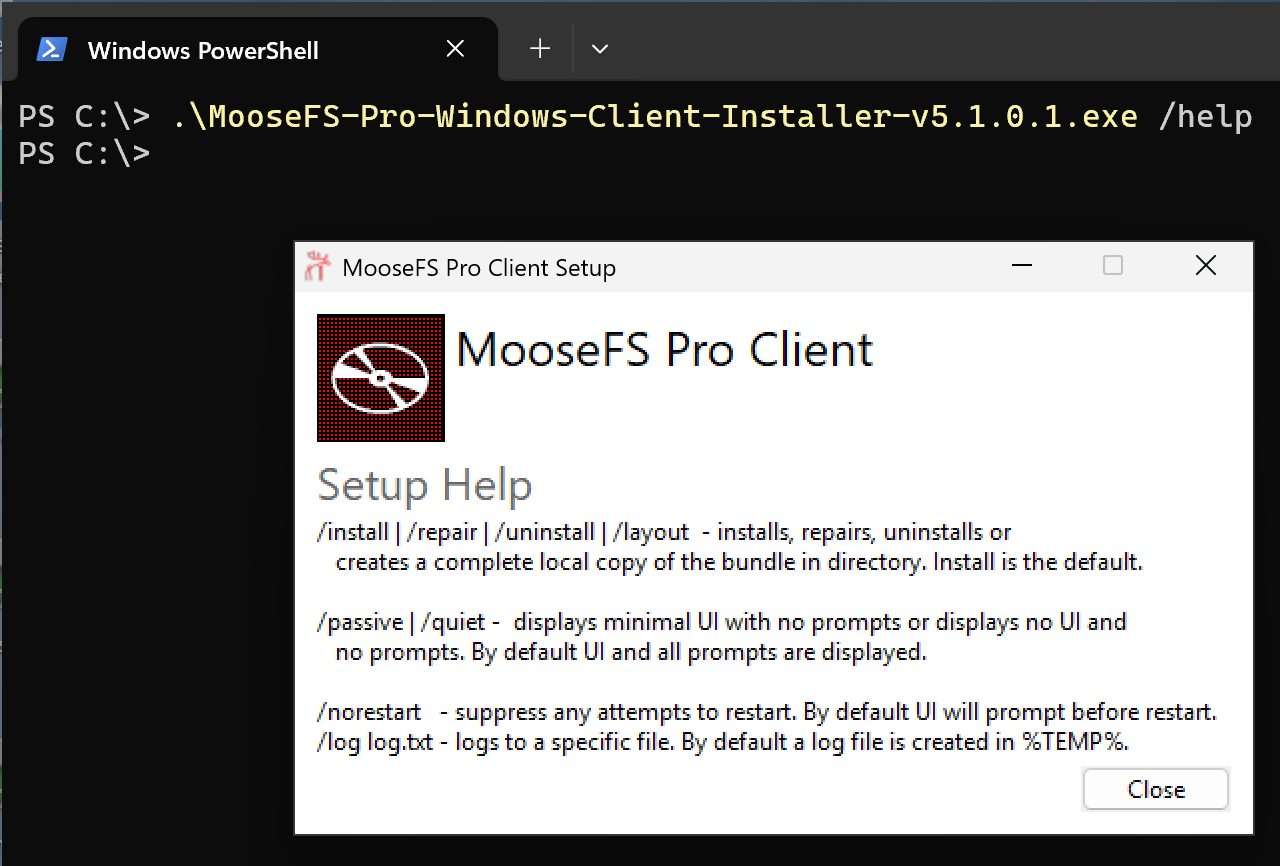
The Setup Help window that /help opens.
The files, the service, and the drive letter confirm the installation
The client runs only after a restart of the machine. The last screen of the installer says You must restart your computer before you can use the software. Until the restart, the MooseFS Pro Windows Client service does not run, so the drive letter does not appear. Check the installation after the restart.
After installation the following files are present in the system:
Windows Client files:
C:\Program Files\MooseFSdokan2.dll– Dokan user mode librarymfsmanager.exe– MooseFS Windows Client Managermfssrv.exe– MooseFS Windows Client Service
Dokan files:
C:\Windows\System32dokan2.dll– Dokan user mode librarydokannp2.dll– Dokan Network Providerdokanfuse2.dll– Dokan FUSE librarydrivers\dokan2.sys– Dokan File System Driver
The client itself appears on the service list: services.msc shows MooseFS Pro Windows Client (managing the service).
When the service connects to the Master Server, the drive letter chosen above appears in the system. .params in the root of the mounted drive shows the parameters that the connection uses. Windows Client troubleshooting covers that readout and what to check when the drive does not appear.
Usage covers running the client, its log, and every parameter that the registry holds.